YouTube Shorts are vertical clips of up to three minutes, and they disappear into the feed as fast as they appear. The app gives you no way to keep one outside YouTube. The Y2meta YouTube Shorts downloader saves the actual video file – vertical, HD, with sound – to your phone or computer.
How to download YouTube Shorts
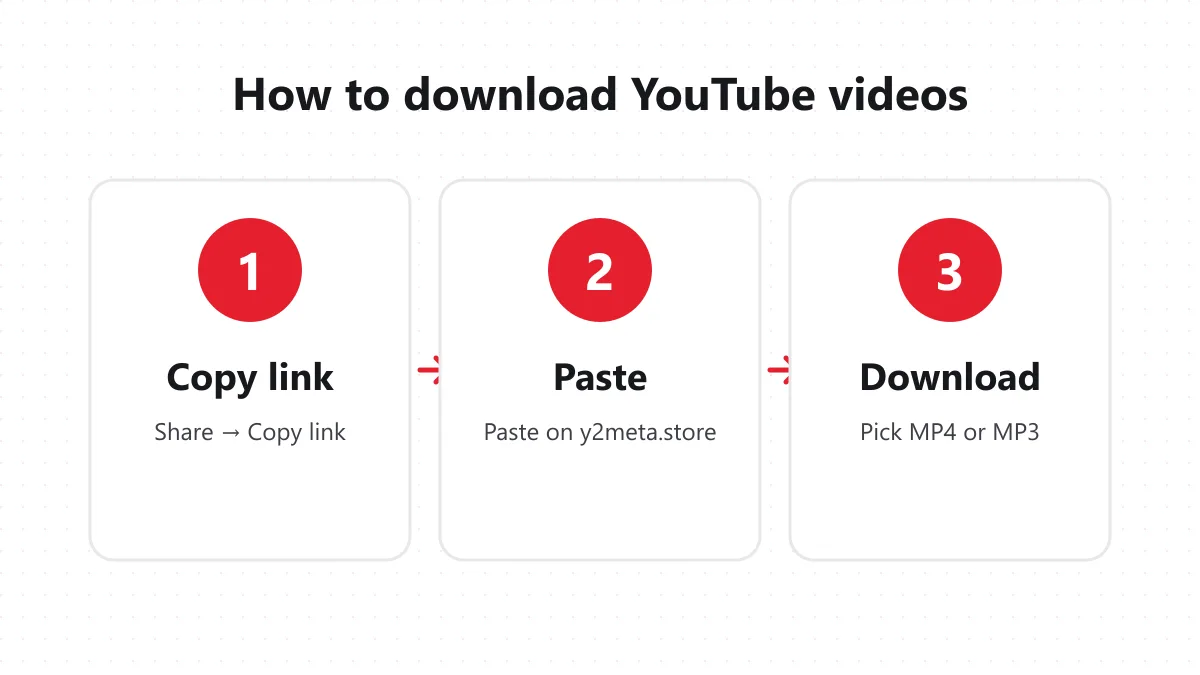
1. Copy the Shorts link
In the YouTube app, open the Short, tap Share (the arrow on the right side) and choose Copy link. The link looks like youtube.com/shorts/…. On a computer, copy it from the address bar.
2. Paste it on Y2meta
Paste the link into the box at the top of this page and press Start. There’s no need to edit the link.
3. Save the Short
Tap the top MP4 option – usually 1080×1920 – to save the sharpest version. Choose a lower quality for a smaller file, or MP3 if you only want the sound.
Shorts vs screen recording
Screen recording is the obvious workaround, but it’s a poor one:
| Screen recording | Y2meta | |
|---|---|---|
| Quality | Whatever streamed, often blurry | Best available, up to 1080p |
| Interface on screen | Likes, comments, buttons | None |
| Sound | Through the speaker, with noise | Original audio track |
| Time | As long as the Short | A few seconds |
What makes Shorts different
Shorts are vertical (9:16), short, and often use music from YouTube’s licensed library. Most are recorded on phones and stored at 1080×1920, with smaller versions for slow connections. Y2meta lists all of them, so you can choose between a sharp file and a small one.
Because they’re vertical, Shorts look best on a phone. If you want to use one in a horizontal edit, download the 1080p version – scaling up a low-quality vertical clip looks soft.
Saving Shorts on each device
Android: Chrome saves the MP4 to Downloads; it appears in Google Photos or your gallery under “Download”. iPhone: In Safari, open the downloads list after saving, tap the file, then Share → Save Video. It goes into Photos, ready to post or edit. Computer: The MP4 saves to Downloads and opens in any player. CapCut, Premiere and DaVinci Resolve import it directly.
Good reasons to save Shorts
- Backing up your own Shorts in full quality before you edit or delete them.
- Reposting your own content on other platforms without the quality loss of re-recording.
- Keeping recipes, workouts and quick tips on your phone for offline use.
- Collecting reference clips for a project, with the creator’s permission.
What you shouldn’t do is take someone else’s Short and upload it as your own. Platforms detect re-uploads and can strike the account that posts them, and it’s unfair to the creator. Share the original link, or ask permission and credit them.
Troubleshooting
“Video unavailable” – The Short is private, removed, age-restricted or blocked in your region. Only low quality appears – The Short was uploaded at a lower resolution. No sound – Some Shorts use music that YouTube mutes in certain countries; the file reflects that. Wrong video downloaded – Make sure you copied the link of the Short itself, not the channel’s Shorts tab.
Tips for the best result
Always start with the top MP4 option; it is the sharpest version YouTube stored. If the file looks small, check the size next to each option, because a Short saved at 1080×1920 is usually a few megabytes larger than the 720p copy. Keep Wi-Fi on for the first download if your data plan is limited, and store your saved clips in one folder so they are easy to find later. Shorts are short, so even the HD file is rarely more than 30 MB.
Want longer videos? Use the main Y2meta YouTube video downloader or the YouTube to MP4 converter. For audio only, go to YouTube to MP3. Y2meta is independent and not affiliated with YouTube or Google.