Sometimes the picture doesn’t matter. A podcast, a lecture, a song, a sermon or a language lesson – you just want to listen. The Y2meta YouTube to MP3 converter pulls the audio out of a YouTube video and saves it as an MP3 (or M4A) file that plays anywhere, without keeping a heavy video on your phone.
How to convert YouTube to MP3
1. Copy the YouTube link
Use Share → Copy link in the app, or copy the browser address on a computer. YouTube Music links work too.
2. Paste it on Y2meta
Paste the link above and press Start. On this page, the audio options are shown first.
3. Download the MP3
Tap MP3 for the file that plays everywhere, or M4A for the untouched original audio. It saves to your device in seconds.
Why save audio instead of video?
Audio files are a fraction of the size. A one-hour video in 1080p can be 1 GB or more; the same hour as a 128 kbps MP3 is about 57 MB. For a phone with little storage or a small data plan, that’s a huge difference.
| Content | Video 1080p (approx.) | MP3 (approx.) |
|---|---|---|
| 4-minute song | 40–60 MB | 4–9 MB |
| 30-minute lecture | 450–700 MB | 28–70 MB |
| 1-hour podcast | 1 GB+ | 57–140 MB |
Audio also keeps playing with the screen off, works in any music app, and loads into car stereos, smartwatches and podcast players.
Which bitrate should you choose?
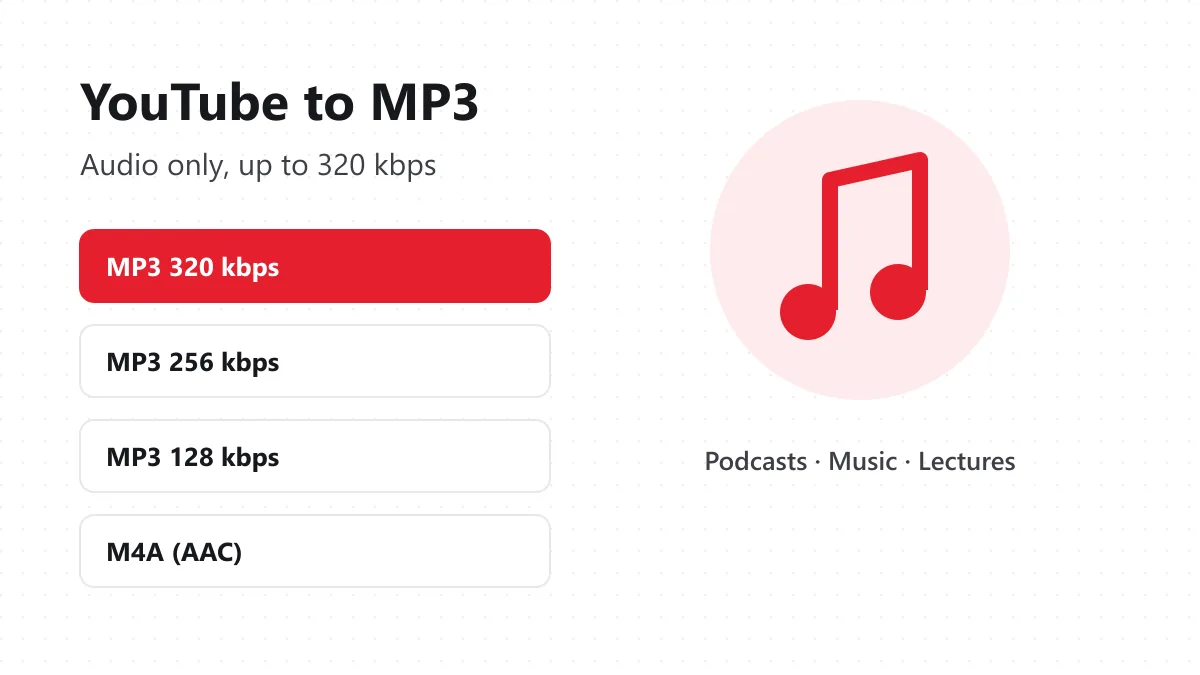
320 kbps – the highest MP3 setting. Good for music you’ll play on decent speakers or headphones. 192 kbps – a solid default that keeps everything YouTube’s audio contains. 128 kbps – perfect for speech: podcasts, audiobooks, lectures. M4A (AAC) – the original audio track with no conversion at all, often the best quality for its size.
An honest note: YouTube’s own audio is usually 128–160 kbps. Converting it to 320 kbps doesn’t create detail that isn’t there; it simply guarantees nothing is lost in the conversion. If the original recording is noisy, the MP3 will be too.
What people convert to MP3
- Podcasts and interviews that only exist as YouTube videos.
- Lectures and online classes to review while walking or driving.
- Sermons and religious talks streamed by mosques, churches and temples.
- Language lessons to listen to again and again.
- Your own music, if you uploaded a track to YouTube and lost the file.
- Meditation and sleep sounds to play offline at night.
Playing the MP3 on your device
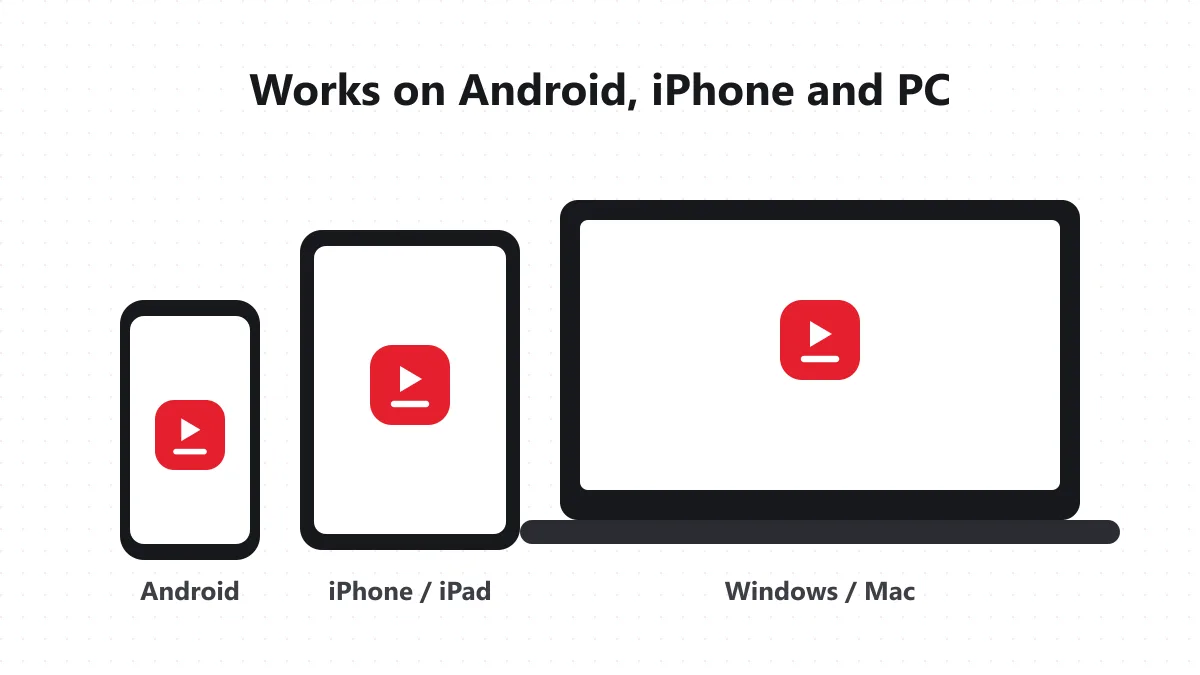
Android: The file goes to Downloads and shows up in music apps that scan your storage, or open it with VLC. iPhone: Safari saves it to Files. Tap to play, or use Share to send it to another app. Windows / Mac: Plays in any media player, and imports into Audacity or GarageBand if you want to trim it.
Copyright, plainly
Most commercial music on YouTube is licensed to YouTube, not to you. Converting a track for your own offline listening is one thing; uploading it, using it in your videos or selling it can lead to copyright claims. Stick to content you have the right to keep: your own uploads, Creative Commons audio, public-domain recordings, or material the creator lets you download. Y2meta is independent and not affiliated with YouTube or Google.
Fixes for common problems
The MP3 is silent – A few music videos have audio muted in some countries for licensing reasons. Video unavailable – Private, age-restricted and removed videos can’t be converted. The file opens in the browser – Long-press or right-click the button and choose Download linked file.
Want the full video instead? Use the YouTube to MP4 converter or the main Y2meta YouTube downloader. For vertical clips, try the YouTube Shorts downloader.